Pop Connect beta: get started
Use Stream through POP Link to reach your other PC with Pop Connect and POP Host.
Windows beta. This is an early test release. Unattended access and Stream video performance still await final release validation. Relay connections can be slower than direct connections.
1. What you need
Windows 11 x64 on both PCs, a POP ID account and both PCs powered on and online. The Host needs an attached display that can be captured; this beta does not add a virtual display.
Sign in to POP ID in Pop Connect, then pair with POP Host. POP Host does not sign in to POP ID itself. Your POP ID does not replace the Host PC’s Windows username and password.
This guide covers one active client per Host. One POP ID can own several Hosts.
2. Download
Pop Connect
For the PC you connect from. Portable ZIP — no installer. Windows 11 x64.
Download Pop Connect ZIPBeta version: production-4987847f9 · Size: 124902751 bytes
ZIP SHA-256
978f279ee8ab4fb9dcc6eb9640c06ab98588c9c565140aec3887ba736b19b8ddPOP Host
For the PC you want to reach. Windows 11 x64. Extract the whole ZIP and keep its files together. Install with POPHostServiceSetup.exe; do not run POPHostService.msi directly.
Download POP Host setupBeta version: 0.1.0 (1095d8e19e) · Size: 93284975 bytes
Setup ZIP SHA-256
8c3337ef98b4fafb515f0c18bc458f92b5a7e01b67929577768601958f8e7278Download Pop Connect on the PC you connect from and POP Host on the PC you want to reach. Extract the client ZIP before running it. See release details and checksums for both downloads.
Known limits in this beta
- Fast typing can drop letters.
- Sign-out/sign-in and UAC screens are not followed yet.
- The Host badge’s Stop sharing link ends sharing.
- Connections that need relay may be refused by plan with Your plan does not include relay access during this beta. Direct connections work. Relay connections can be slower than direct connections.
3. Set up the Host PC
- Right-click the POP Host ZIP and choose Extract All to extract the whole archive. Keep all extracted files together. Do not run anything from inside the ZIP.
- In the extracted folder, double-click POPHost-beta\payload\POPHostServiceSetup.exe as your normal Windows user. Do not choose “Run as administrator” and do not run POPHostService.msi. Approve the setup confirmation, then approve the Windows UAC prompt and wait for installation to finish. Installation leaves sharing off.
- Start the installed POP Host manager as your normal Windows user, not as administrator. This beta creates no shortcut yet. Press Win+R and paste this command:
Select Share this console if offered, then Check again if needed."C:\Program Files\POP\Host\bin\svc-beta-stream-20261015-1095d8e19e\POPHostPreview.exe" --machine-service
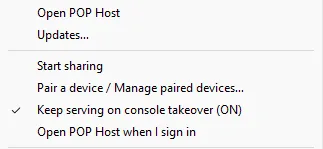
Choose Share this console on the PC you want to reach. - Click Start sharing and follow any readiness or consent prompts. Then choose Pair a device on the Host and keep its code window open. In Pop Connect, choose Add computer → POP Stream and enter the fresh Host code. The code card shows Code expires in with the remaining time.
Don't open POPHostService.msi — Setup uses it. If you opened it by accident, restart your PC, then start POP Host with the command above.
For an attended session, review POP Host — Attended Stream and choose Yes to allow sharing. Keep the window open or minimised; attended sharing ends when Windows locks, signs out or enters a security desktop. For unattended setup, see section 6.
Upgrading POP Host: quit POP Host from the tray before running the newer setup. The 1095 version’s uninstall can otherwise fail with error 1603.
Open POP Host when I sign in opens the tray; it does not enable unattended access.
If POP Host won't uninstall or reinstall (force clean-up)
Use this if uninstalling shows "A program run as part of the setup did not finish as expected", or setup says "Install or repair POP Host. For an existing different release, run POPHostServiceSetup.exe --upgrade…". Your pairing will be removed; pair again afterwards.
Open Command Prompt as administrator for each step: Start → type cmd → right-click → Run as administrator. Paste one line at a time.
- Right-click the POP Host tray icon → Quit (if present).
- Stop and remove the POP Host services:
taskkill /F /IM POPHostPreview.exe
taskkill /F /IM POPHostPreviewLauncher.exe
taskkill /F /IM POPHostSession.exe
sc stop POPHostStreamWorker
sc stop POPLink
sc stop POPHostBroker
sc delete POPHostStreamWorker
sc delete POPLink
sc delete POPHostBroker
net localgroup "POP Host Operators" /delete
("not found" / "does not exist" messages are fine.)
- Restart the PC.
- Remove the leftover folders (Command Prompt as administrator again). On English Windows use
/d Y; on Portuguese Windows use/d S:takeown /f "C:\ProgramData\POPLink" /a /r /d Y icacls "C:\ProgramData\POPLink" /grant *S-1-5-32-544:F /t /c /q rmdir /s /q "C:\ProgramData\POPLink" takeown /f "C:\Program Files\POP\Host" /a /r /d Y icacls "C:\Program Files\POP\Host" /grant *S-1-5-32-544:F /t /c /q rmdir /s /q "C:\Program Files\POP\Host"If a line says "access denied", restart again and repeat step 4.
- Install again: run payload\POPHostServiceSetup.exe (never the .msi), approve the prompts, open POP Host, click Start sharing, then pair from Pop Connect.
Don't delete anything else: leave the registry alone.
4. Sign in and pair
- Right-click the Pop Connect ZIP, choose Extract All and run PopConnect.exe from the extracted folder. Keep the supplied files together.
- On first run, sign in with POP ID in the browser opened by Pop Connect, then return to the app. To try again, use Account → Sign in. Saved data is protected automatically; no passphrase is needed.
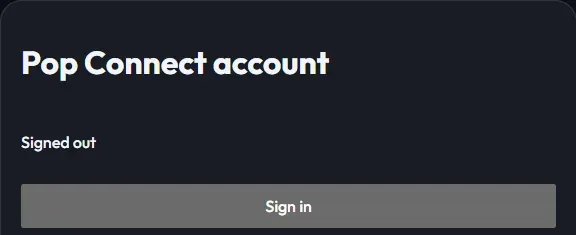
Use Account → Sign in to reopen browser sign-in. 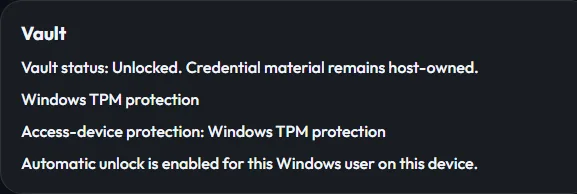
Account → Vault shows this device’s automatic protection. - Choose Pair with POP Host, or Add computer → POP Stream if you already have saved computers. In Pair with POP Link, enter the fresh code in Host code and choose Pair.

Choose Pair with POP Host on the first-run screen. 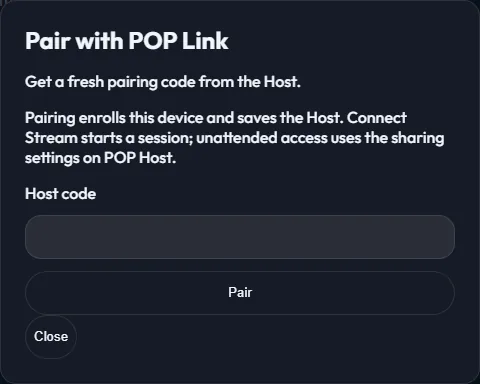
Enter the fresh Host code. Pairing saves the Host; Connect Stream starts a session. - If POP Host shows Approve access device on this Host, check the Account, Device and Fingerprint, then choose Yes for your device. This enrolls the device; it is separate from enabling unattended sharing.
- Back in Pop Connect, choose View computer, then Connect Stream. Pairing saves the computer; it does not start a session.
Use the remote desktop

- Typing: use your keyboard layout, including accented characters, but fast typing can drop letters in this beta. Use the Host’s Windows credentials if its sign-in screen is available; this Host beta does not yet follow sign-out/sign-in or UAC screen changes. After reconnecting, wait for Waiting for desktop… to clear; typing resumes without an extra click.
- Fullscreen: choose the toolbar’s Fullscreen control. The video keeps its proportions as the window changes size. Use the persistent Exit fullscreen button or Ctrl+Shift+F11 to leave (on macOS, Cmd+Shift+F11). Open Session tools to show the controls again.
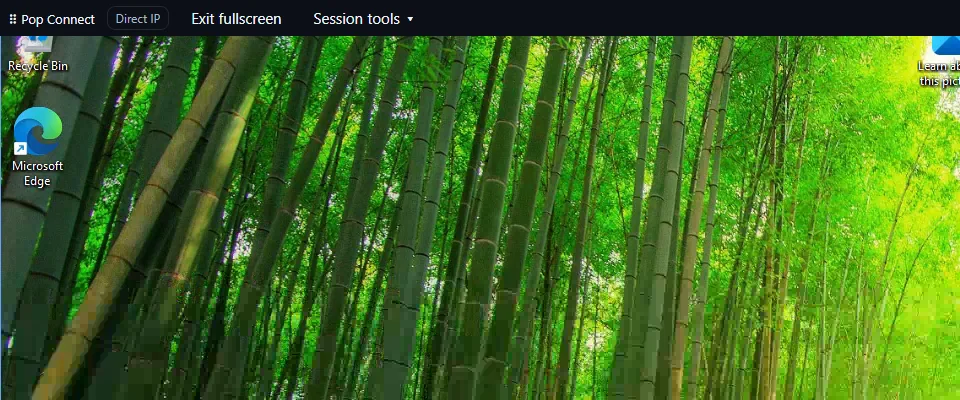
Fullscreen, upper-left crop: Exit fullscreen stays visible above the desktop. - Audio: the toolbar’s Audio button mutes or unmutes this session.
- Input: opens Remote keyboard for Tab, Enter, Esc, function keys, Windows and key combinations. Modifiers apply to the next key only. Use Send Ctrl+Alt+Del separately when the Host offers it.
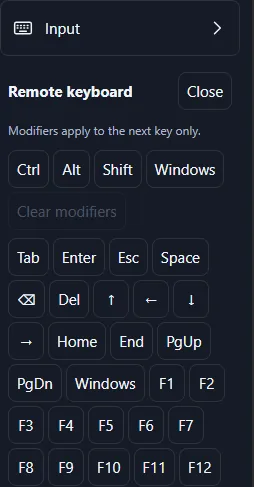
Session tools → Input opens Remote keyboard. Modifiers apply to the next key only. - Video: H.264 uses GPU decoding on supported Windows hardware, with software fallback. The codec depends on the Host; Stream video performance is still being validated.
- AI Tasks: when offered for the session, open AI Tasks to run a task. Manual input pauses while a task controls the session; use Stop task to cancel it.
For client updates, use Updates → Check for updates. If a verified update is offered, save your work and finish sessions and tasks before choosing Restart to update. Updates require the signed managed installation; availability depends on your build.
5. Host status and stopping sharing
Ready to pair: no devices yet. means enrollment is needed. After pairing, Ready for your paired device. means the Host is waiting. Device connected. reports an open connection; check Pop Connect for the live desktop.
The Host’s sharing badge shows the active connection count and Stop sharing. Choose Stop sharing to end sharing and wait for Sharing is off. Pairing stays saved. In Pop Connect, Disconnect ends your session and cancels automatic reconnect.
6. Connect while you’re away — beta candidate
Unattended access is a beta candidate with known screen-transition limits. Installation and pairing alone do not enable unattended access.
In the service-based POP Host manager, the Host owner or administrator uses Sharing → Enable unattended access and start (sign-in, lock and UAC) and reviews the confirmation. This also starts sharing. Paired devices can then connect without someone approving each session; Windows credentials are still required to sign in or unlock.
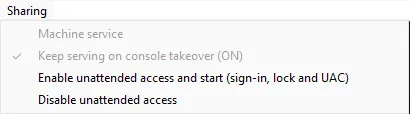
The published Host beta does not yet follow sign-out/sign-in or UAC screens. Do not rely on those transitions for unattended access. Lock-screen and start-after-reboot paths still need final release verification. Send Ctrl+Alt+Del appears only when the Host reports permission and support; any separate Windows service permission for it is a persistent PC-wide setting.
After a Host restart or lost connection, Pop Connect tries to reconnect in the same tab. Old video clears and input pauses until the desktop is ready. Use Retry now while reconnecting, or Reconnect when offered. Disconnect cancels recovery.
In unattended mode, Stop sharing pauses the Host until Start or the next Windows boot; it keeps start-on-boot permission. Use Sharing → Disable unattended access to remove that permission.
7. If something goes wrong
- The pairing code expired
- Codes last up to 5 minutes. Choose New code or Pair a device on POP Host, then use Use a fresh Host code in Pop Connect if offered.
- The Host is offline or sharing is off
- Check that it is powered on, online and sharing. Follow the Host’s readiness message, then use Check again and Start. Your saved pairing remains available.
- The desktop does not return
- Wait while Waiting for desktop… is shown. Use Retry to restore the display when offered, or Reconnect to retry the saved Host. Open Technical details if it still fails.
- Sign-in, vault or access is required
- Complete Sign in or Unlock vault, then reconnect. For revoked access, ask the Host owner to restore access and pair with a fresh code. A certificate mismatch blocks the connection; check with the owner before retrying.
- “Secure Stream is unavailable on this device”
- Follow the reason shown in the app and include it when contacting support.
Send logs
Include the app versions, problem time, what you tried and any Technical details. To capture client logs, close Pop Connect, open PowerShell in its extracted folder and run:
Start-Process -FilePath .\PopConnect.exe -WorkingDirectory (Get-Location).Path -RedirectStandardOutput .\stdout.txt -RedirectStandardError .\stderr.txtReproduce the problem, then close the app; stdout.txt and stderr.txt are in that folder.
For Host logs, open Event Viewer → Windows Logs → Application, filter for POPHostBroker and POPLink, then use Save Selected Events. Hide account details and private screen content; never send passwords, pairing codes, tokens or saved-data folders.
Report beta problems through Contact. Include the details above and share logs privately.